Blog /
Playwright MCP Claude Code: How to Set Up and Run It
Playwright MCP Claude Code setup: install the server, keep a signed-in session, fix browser-in-use errors, and know its limits.
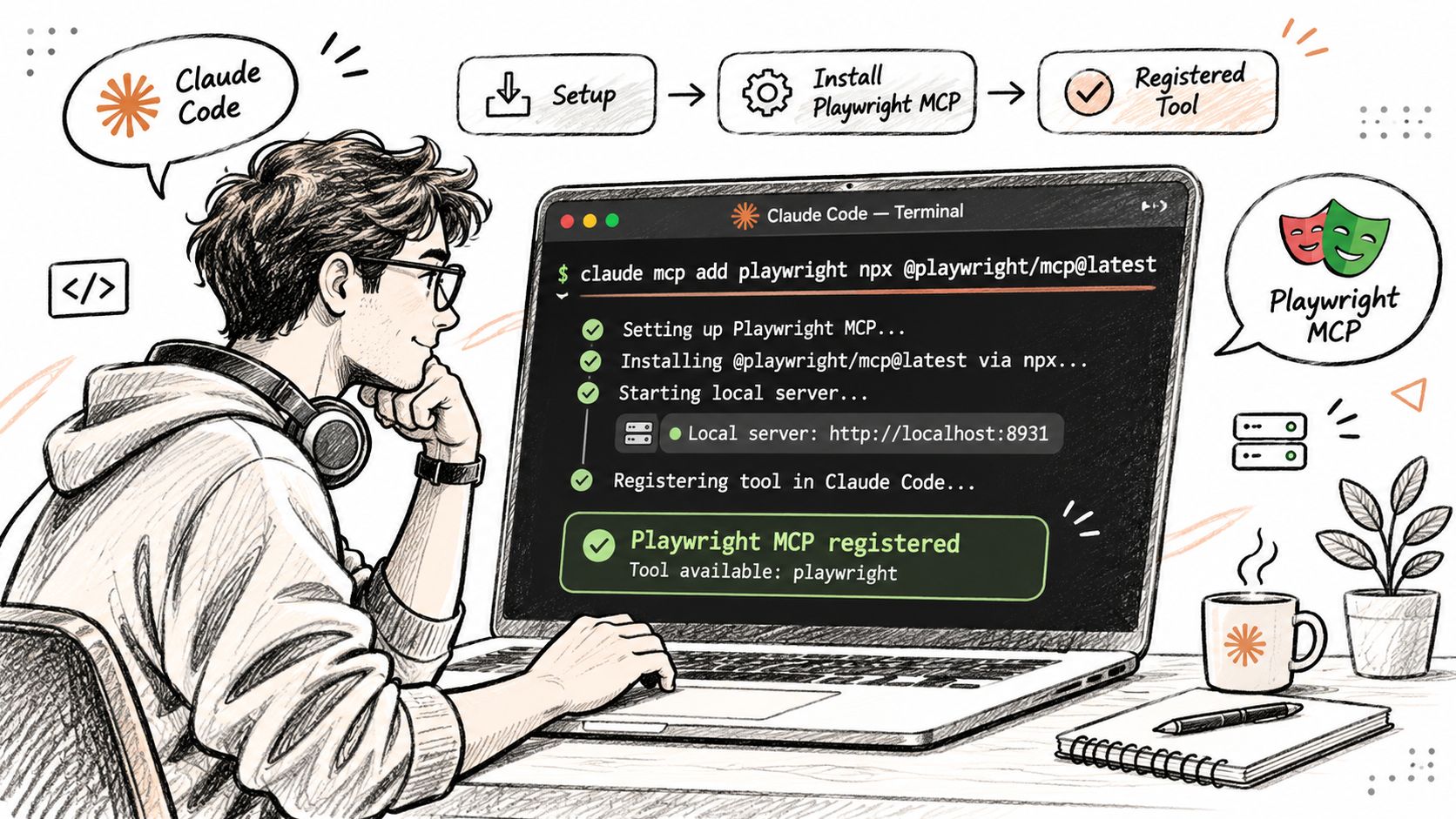
To set up Playwright MCP in Claude Code, install Node.js 20 or newer, then run claude mcp add playwright npx @playwright/mcp@latest in your terminal. That is the command in Playwright's MCP getting-started guide. Start Claude Code, type /mcp and check that playwright shows as connected. Then ask the agent to open a page. From there it can navigate, click, fill forms and read the page through Playwright, all inside your coding session.
This guide covers the exact setup from the official docs, sharing the config with a team, what the server can and cannot do, first prompts, keeping a signed-in session, and the two errors people hit most: a locked browser profile and a server that fails to connect.
Some background: Anthropic introduced the Model Context Protocol on November 25, 2024, describing it as "a new standard for connecting AI assistants to the systems where data lives". Playwright MCP is Microsoft's MCP server that exposes a Playwright-controlled browser to any MCP client, Claude Code included.
Install Playwright MCP in Claude Code
The Microsoft Playwright MCP repository gives this command for Claude Code:
claude mcp add playwright npx @playwright/mcp@latest
The Claude Code MCP documentation writes the general form for a local stdio server as claude mcp add [options] <name> -- <command> [args...], where everything after -- is passed to the server untouched. The -- form is useful as soon as you add Claude's own options or server flags:
claude mcp add playwright -- npx @playwright/mcp@latest
Step-by-Step Setup and Team Configuration
Check the Node.js runtime with
node --version. The Playwright MCP README lists Node.js 20 or newer as the requirement.Register the server. Run the command above. Without
--scope, Claude Code uses the defaultlocalscope: the server is available only to you, in the current project, and is stored in~/.claude.json. Add--scope userto have it in all your projects.Verify the connection inside Claude Code. Start a session and type
/mcp. Per the Claude Code docs, the panel shows each connected server with its tool count.Try a harmless navigation. Ask the agent to open a public page and report its title before you point it at your own app.
Share it with the team through
.mcp.json. Theprojectscope is the one Claude Code stores in.mcp.jsonat the project root, shared through version control. Runclaude mcp add --scope project playwright -- npx @playwright/mcp@latest, or commit an entry like this, which follows the config in the Playwright MCP README:
{
  "mcpServers": {
    "playwright": {
      "command": "npx",
      "args": ["@playwright/mcp@latest"]
    }
  }
}
A working setup shows three signals: /mcp reports playwright as connected with its tools, the agent can name the browser tools it has, and a navigation to a public page returns the page title without error.
What Playwright MCP Can and Cannot Do
| Task | Supported | Limit or note |
|---|---|---|
| Open pages and click through flows | Yes | --browser accepts chrome, firefox, webkit, msedge |
| Read the page as an accessibility snapshot | Yes | Works on the accessibility tree, not pixels |
| Keep login between sessions | Yes | The default persistent profile keeps login state, cookies and local storage |
| Attach to tabs already open in your browser | Yes, in extension mode | Chrome and Edge only, needs the Playwright extension |
| Use one profile from two browsers at once | No | A profile can be used by one browser at a time |
| Read server logs or source code | No | It sees pages, elements and browser state |
| Speak for the deployed app after your session ends | No | It tests what your session opened, when it opened it |
- Task
- Open pages and click through flows
- Supported
- Yes
- Limit or note
--browseracceptschrome,firefox,webkit,msedge
- Task
- Read the page as an accessibility snapshot
- Supported
- Yes
- Limit or note
- Works on the accessibility tree, not pixels
- Task
- Keep login between sessions
- Supported
- Yes
- Limit or note
- The default persistent profile keeps login state, cookies and local storage
- Task
- Attach to tabs already open in your browser
- Supported
- Yes, in extension mode
- Limit or note
- Chrome and Edge only, needs the Playwright extension
- Task
- Use one profile from two browsers at once
- Supported
- No
- Limit or note
- A profile can be used by one browser at a time
- Task
- Read server logs or source code
- Supported
- No
- Limit or note
- It sees pages, elements and browser state
- Task
- Speak for the deployed app after your session ends
- Supported
- No
- Limit or note
- It tests what your session opened, when it opened it
As the Playwright MCP getting-started guide puts it, "Playwright MCP operates on the page's accessibility tree, not pixels." Tools return structured snapshots, and the model acts on elements through references in that snapshot, so no vision model is needed.
Where the Browser Boundary Stops
Two rows in that table matter most in daily work. First, the server does not read application internals, server logs or source code; the agent acts on rendered roles, labels and browser state, and uses its own file tools for the code.
Second, a pass in the agent's browser is a result about that session. Once the code ships, environment variables, caching, auth callbacks and third-party services on the live app can behave differently, and the agent that wrote the change is also the one reporting that it works. That is the argument for a separate check of the deployed app.
Use Playwright MCP to explore, locate elements and debug flows during a coding session, and treat its results as results about that session.
First Prompts to Run in Claude Code
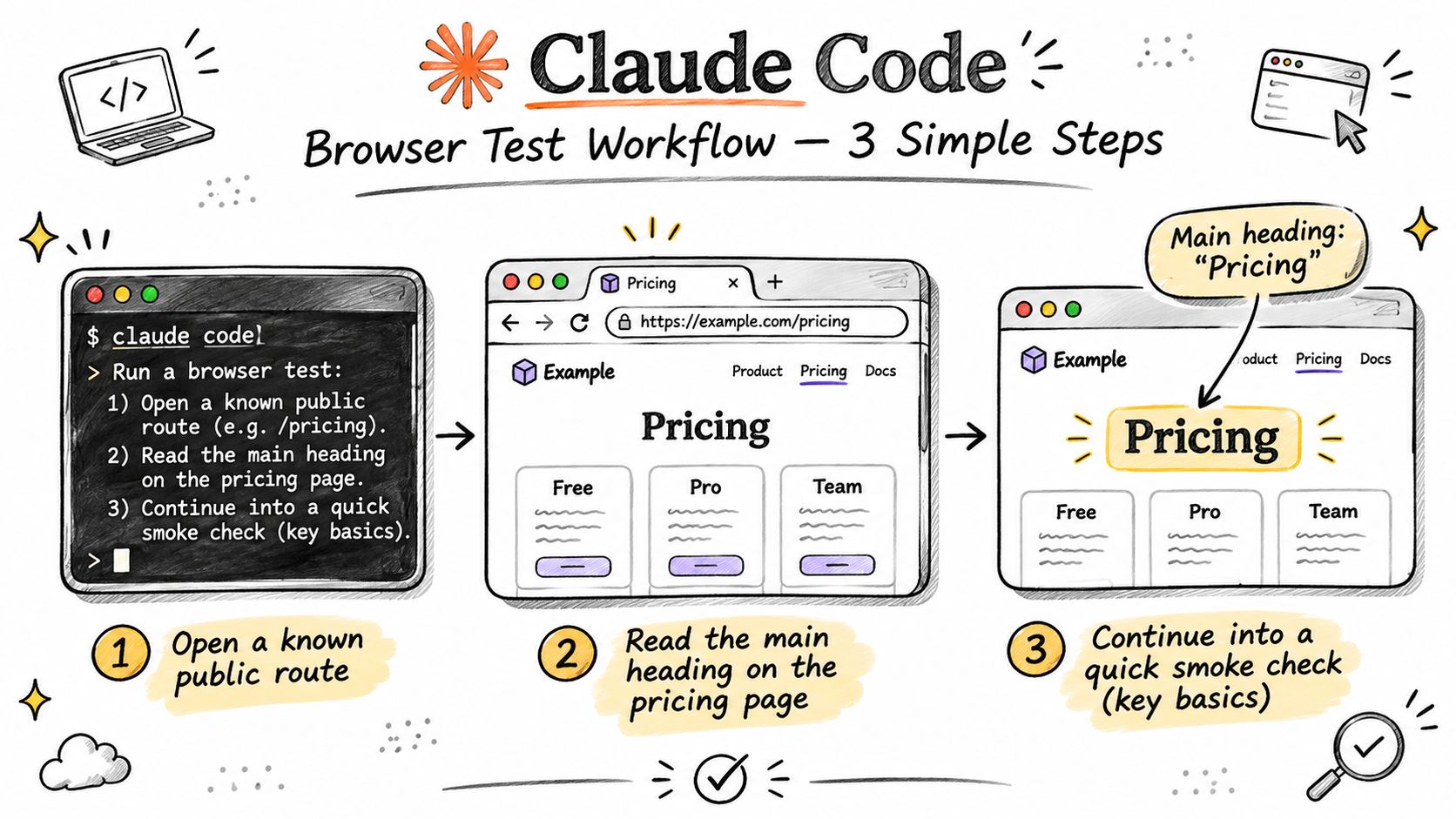
Once /mcp shows a connected server, run a short sequence before pointing the agent at long user flows.
Five First Prompts
Open one known public route.
"Use Playwright MCP to open https://example.com and report the main heading."Naming Playwright MCP explicitly keeps the agent from reaching for a shell command instead.Read the accessibility snapshot.
"Read the accessibility snapshot of the current page and list the main landmark regions."This shows quickly whether your controls expose clean roles and labels.Target a control by role and label.
"On my local app, find the Sign in button by its accessible role and label and report its state."Role-and-label targeting survives styling changes that break selectors built on generated class names.Run one state-changing action with a test account.
"On my local app, submit the newsletter form with test-smoke@example.com and wait for the confirmation message."A form submission shows the session handles real input, which reading pages cannot.Ask for evidence, not a summary.
"Report each step as pass or fail, with the final URL and the exact visible confirmation text."This stops the agent from describing a half-loaded page as a success.
Pitfalls That Break Early Runs
Pasting credentials into prompts: passwords in prompts end up in chat history and model requests.
Relying on generated class names: hashed or utility CSS classes change between builds.
Accepting prose as proof: "the flow worked" means little without the resulting URL and the visible confirmation.
Chaining long journeys into one prompt: the Playwright MCP introduction notes that MCP keeps tool schemas and snapshots in context, so long journeys fill it. Keep each journey short.
Keep a Signed-In Session Without Leaking Credentials
By default Playwright MCP uses a persistent profile. The Playwright MCP user profile guide says "Login state, cookies, and local storage are preserved between sessions." The profile lives in a folder named after the browser channel and a hash of your workspace:
macOS:
~/Library/Caches/ms-playwright-mcp/mcp-{channel}-{workspace-hash}Linux:
~/.cache/ms-playwright-mcp/mcp-{channel}-{workspace-hash}Windows:
%LOCALAPPDATA%\ms-playwright-mcp\mcp-{channel}-{workspace-hash}
To use another folder, pass --user-data-dir=/path/to/profile in the server arguments. For a clean session every time, --isolated keeps nothing on disk, and --storage-state loads saved state into an isolated session. --isolated cannot be combined with --user-data-dir.
Isolating Accounts and Browser Profiles
Give the agent its own test account. Never reuse a founder's login or an admin account with billing or delete rights.
Sign in by hand once in the Playwright-controlled browser. Passwords and one-time codes then stay out of prompts.
Let later sessions reuse the profile. Claude Code sessions in the same workspace pick up the saved cookies.
Use a separate
--user-data-dirper role. Register one server per role (for exampleplaywright-adminandplaywright-user), each with its own folder.One browser per profile. The guide states "A profile can only be used by one browser at a time", so each concurrent session needs its own folder or
--isolated.
Security Controls for Authenticated Runs
Saved cookies make realistic runs possible, and they also widen the damage a bad instruction can do. Currents' article on limiting Playwright MCP agents in CI points out that saved state files carry live authentication tokens and must never be committed, and that the browser_run_code_unsafe tool runs arbitrary JavaScript in the Playwright server process, which the docs call RCE-equivalent.
Prompt injection on third-party pages: hidden text on a page the agent visits can try to steer a signed-in session, so keep authenticated browsing to your own staging or test environments.
Destructive actions: require your approval before the agent deletes data, revokes keys or touches billing.
Unsafe code execution: leave it off unless the client and every page visited are inside a boundary you trust.
Fix Browser in Use and Server Failed to Connect Errors
The most common blocker after setup is the browser is already in use error. The user profile guide explains the cause: a profile can be used by one browser at a time, and if it is already locked the server fails to start. A leftover Playwright window or a second Claude Code session in the same workspace is usually holding it. Close that window, or give the second session --isolated or its own --user-data-dir.
| Symptom | Likely cause | Fix |
|---|---|---|
| Browser is already in use | Another browser holds the same profile | Close the other window, or run the second client with --isolated or a separate --user-data-dir |
| Server failed to connect | Node.js older than 20, or npx not on the PATH Claude Code sees | Install Node.js 20+, restart Claude Code, check /mcp |
| Login lost after restart | Profile folder changed, --isolated in use, or the project folder moved (the hash changes) | Pin the folder with --user-data-dir and sign in once again |
| Long journeys slow down or lose track | Snapshots fill the context | Split the journey into shorter runs |
| Clicks land on the wrong element | Selectors tied to CSS classes | Target elements by role and label |
- Symptom
- Browser is already in use
- Likely cause
- Another browser holds the same profile
- Fix
- Close the other window, or run the second client with
--isolatedor a separate--user-data-dir
- Symptom
- Server failed to connect
- Likely cause
- Node.js older than 20, or
npxnot on the PATH Claude Code sees - Fix
- Install Node.js 20+, restart Claude Code, check
/mcp
- Symptom
- Login lost after restart
- Likely cause
- Profile folder changed,
--isolatedin use, or the project folder moved (the hash changes) - Fix
- Pin the folder with
--user-data-dirand sign in once again
- Symptom
- Long journeys slow down or lose track
- Likely cause
- Snapshots fill the context
- Fix
- Split the journey into shorter runs
- Symptom
- Clicks land on the wrong element
- Likely cause
- Selectors tied to CSS classes
- Fix
- Target elements by role and label
Diagnostic Order for Fast Recovery
In Claude Code, run
/mcpto see whether the server connected at all.If it did not, check
node --versionand thatnpxis on thePATHof the terminal that launched Claude Code.If it connects but the browser will not open or the session is missing, check for profile locks and the
--user-data-dirvalue.
Closing a stray window or shortening a prompt takes effect on the next turn. Upgrading Node, changing PATH or editing server arguments needs a Claude Code restart, then another look at /mcp.
Playwright MCP or Playwright CLI
Playwright itself draws a line here. The Playwright MCP introduction says the Playwright CLI is the better fit for coding agents such as Claude Code working in large codebases, with lower token cost from concise output and skills loaded on demand, while MCP fits "specialized agentic loops, exploratory automation". MCP runs headed by default; the CLI runs headless and is installed with npm install -g @playwright/cli. If your agent mostly runs and repairs tests in a big repo, try the CLI; if you want it to explore pages with you watching, MCP is the better choice.
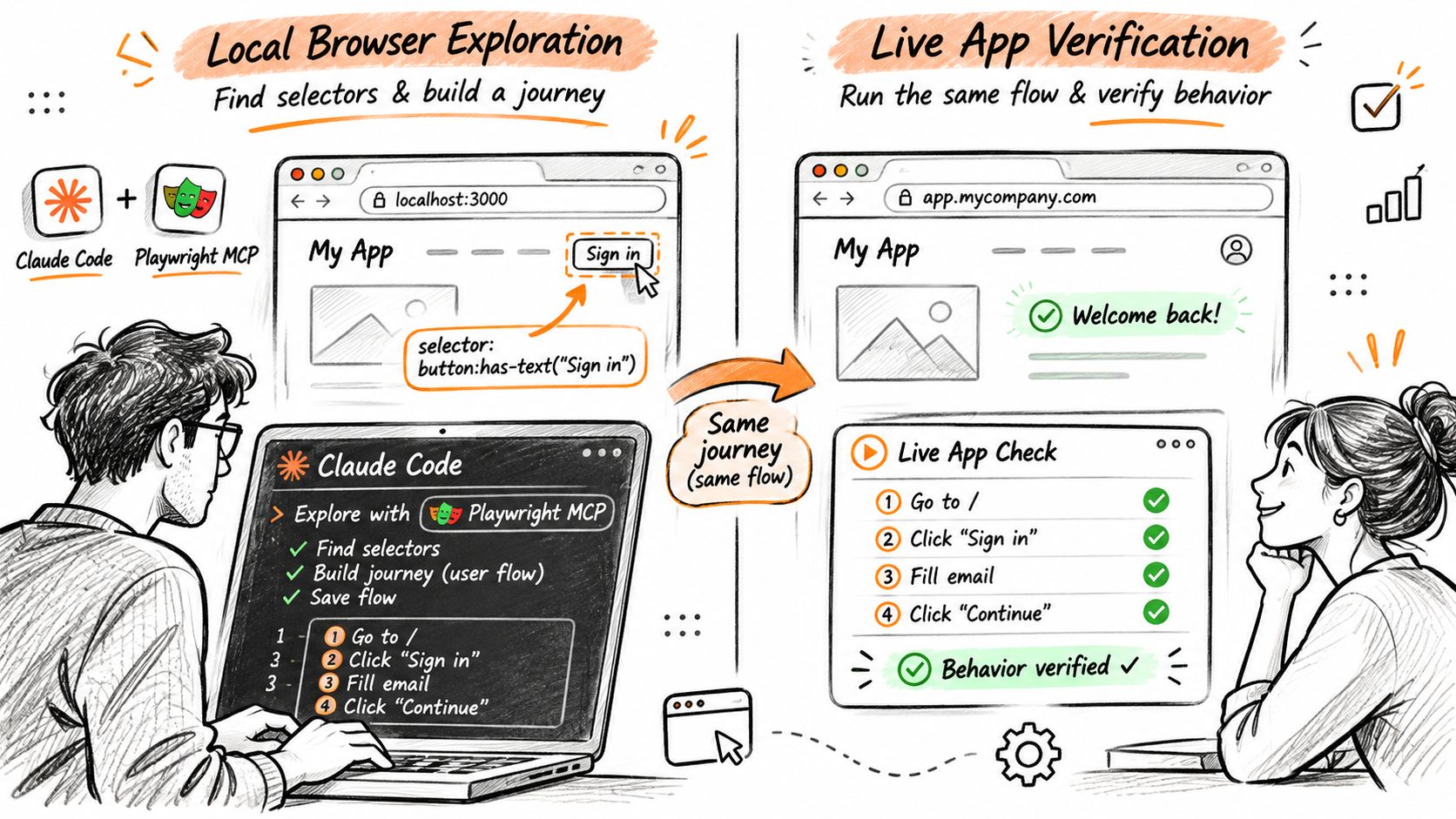
Guides to this setup, such as Builder.io's Playwright MCP and Claude Code guide, stay in development environments and advise sticking to development environments with test data. That is sound advice for an agent with a browser, and it leaves open who looks at the deployed app afterwards.
Your agent says “done”. We check your app.
After each deploy and every day, we walk the journeys you choose on your live app and tell your agent what passed and what failed, with screenshots.
claude mcp add --scope user --transport http checkmyapp https://checkmyapp.dev/mcpFree account: $3 of checks, no card · Cursor, Codex and the full install guide
Add an Independent Check After Each Deploy
Playwright MCP gives your own agent a browser. Checking the live app after a deploy is a separate job, done better by something other than the agent that wrote the change. Playwright MCP is free and runs locally, and it remains the better choice for exploring and debugging while you code.
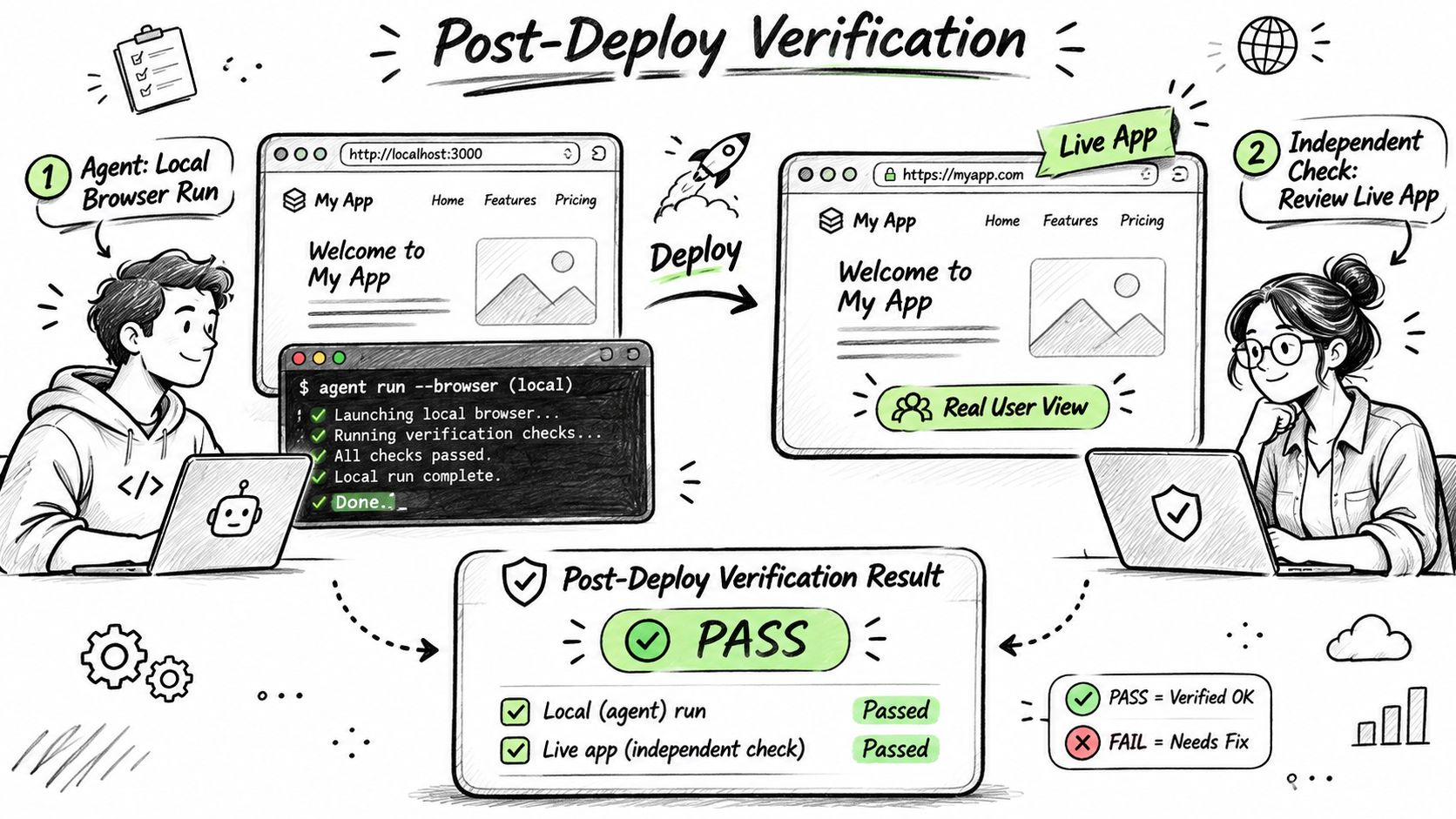
CheckMyApp is one option for the second job. Your agent says "done"; CheckMyApp uses your live app as a real user and tells your agent what broke. After each deploy and every day, it walks the journeys you choose and reports what passed and what failed, with screenshots. It connects to Claude Code, Cursor and Codex through MCP with one command and one sign-in in the browser, no key to copy; the steps are on the install page.
Composed with Outrank
This article was prepared with the help of AI. Found a mistake? Tell us.