Blog /
Claude Code Browser Testing: What Works and Where It Stops
Claude Code browser testing explained: the official tools, when each fits, authenticated journeys, and why an independent check still matters.
Yes, Claude Code can test a web UI in a real browser. There are four official routes: Claude in Chrome (your own signed-in Chrome or Edge), Playwright MCP (a browser the agent launches), Chrome DevTools MCP (Chrome plus its debugging tools), and Anthropic's webapp-testing skill (Playwright scripts against a local app). Each lets the agent open pages, click, fill forms and read console output. What none of them gives you is a check by something other than the agent that wrote the code.
Yes, Claude Code Can Test a Web UI in the Browser
Browser testing with a coding agent comes down to one loop: the agent acts like a user inside a real browser and reports what that user would see. Rather than guessing from JSX templates or server routes, Claude Code can open a rendered page, fill inputs, click buttons, read console output and inspect the DOM.
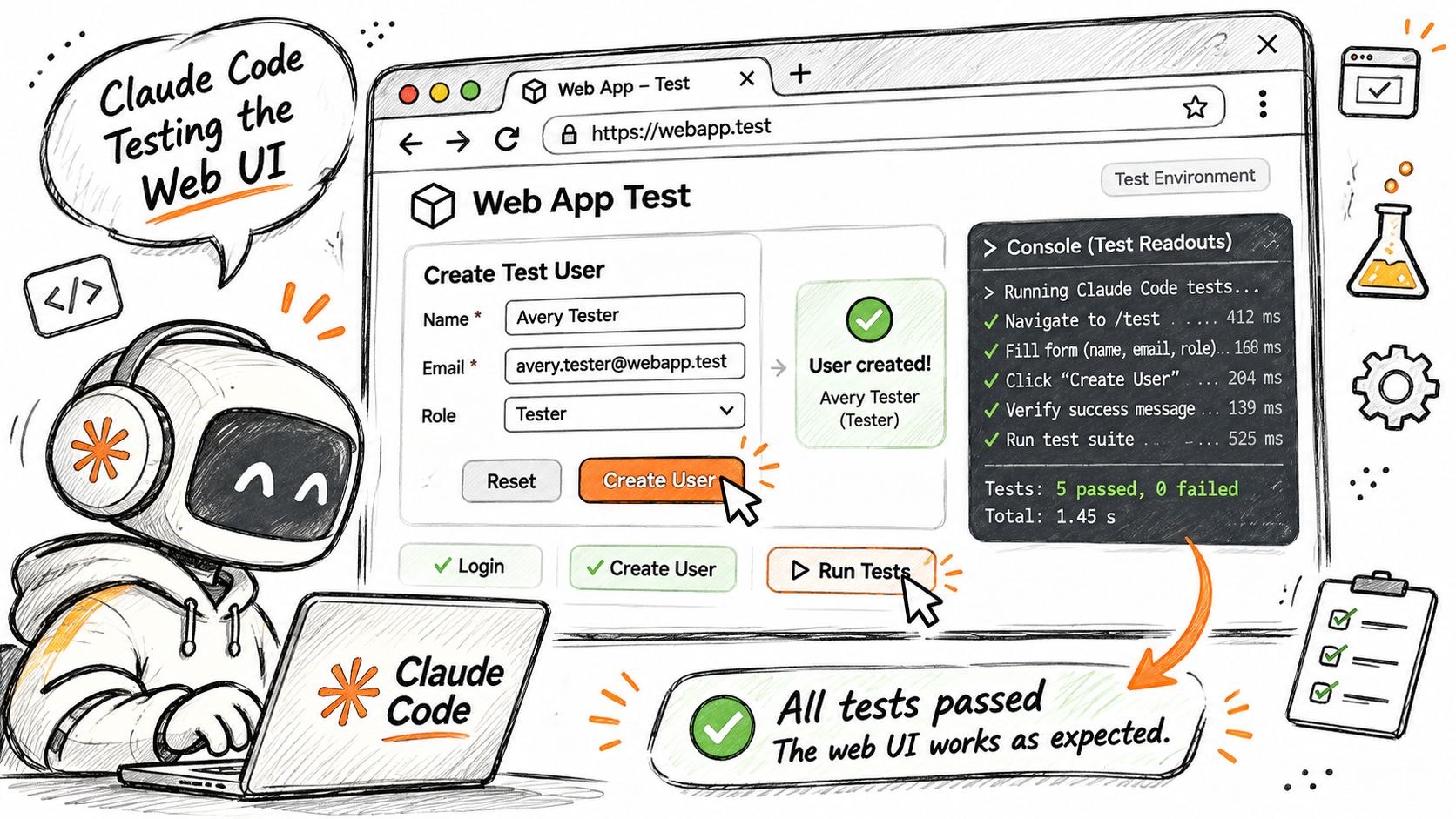
Official Routes for Browser Testing With Claude Code
Each route drives the browser differently and fits a different stage of development.
| Route | What it drives | Best when | Official docs |
|---|---|---|---|
| Claude in Chrome | Your own Chrome or Edge (and other Chromium browsers), with your sign-ins | Exploring or checking a logged-in app while you build | Use Claude Code with Chrome |
| Playwright MCP | A browser it launches itself, through Playwright | Repeatable journeys, headless runs, Chromium, Firefox or WebKit | microsoft/playwright-mcp |
| Chrome DevTools MCP | A live Chrome, through Puppeteer and DevTools | Debugging network requests, console errors and performance | ChromeDevTools/chrome-devtools-mcp |
| webapp-testing skill | Python Playwright scripts against a local app | A ready testing workflow for local web apps | anthropics/skills: webapp-testing |
- Route
- Claude in Chrome
- What it drives
- Your own Chrome or Edge (and other Chromium browsers), with your sign-ins
- Best when
- Exploring or checking a logged-in app while you build
- Official docs
- Use Claude Code with Chrome
- Route
- Playwright MCP
- What it drives
- A browser it launches itself, through Playwright
- Best when
- Repeatable journeys, headless runs, Chromium, Firefox or WebKit
- Official docs
- microsoft/playwright-mcp
- Route
- Chrome DevTools MCP
- What it drives
- A live Chrome, through Puppeteer and DevTools
- Best when
- Debugging network requests, console errors and performance
- Official docs
- ChromeDevTools/chrome-devtools-mcp
- Route
- webapp-testing skill
- What it drives
- Python Playwright scripts against a local app
- Best when
- A ready testing workflow for local web apps
- Official docs
- anthropics/skills: webapp-testing
Interactive checks against your own signed-in session belong in Claude in Chrome. Repeatable journeys belong in Playwright, where standard practices for designing flake-resistant interface test suites keep layout tweaks from triggering false failures.
All four still share one blind spot: every check runs inside the same agent session that edited the code.
How Claude in Chrome Works With Your Signed-In Browser
Claude in Chrome works like a colleague sitting at your open browser, already signed in. According to the Claude Code Chrome documentation, Claude Code connects to the Claude in Chrome extension, opens new tabs for browser tasks and shares your browser's login state. Actions run in a visible window in real time, and when Claude meets a login page or CAPTCHA it pauses and asks you to handle it. The docs list testing form validation, checking for visual regressions, verifying user flows and reading console errors among its uses.
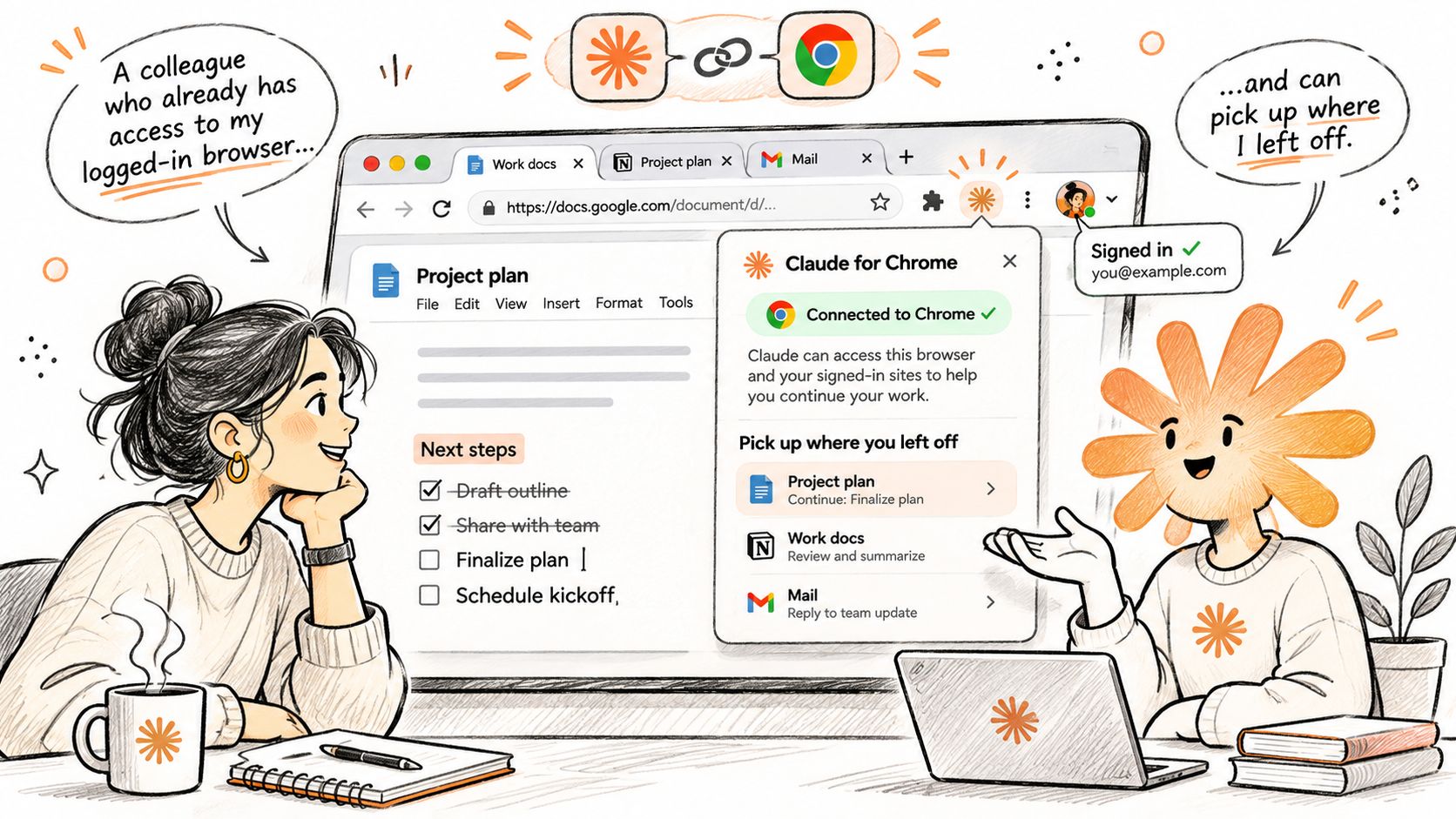
Setup Steps for Claude in Chrome
Per the official guide, you need Google Chrome, Microsoft Edge or another Chromium browser such as Brave, Arc, Vivaldi or Opera; the Claude in Chrome extension version 1.0.36 or later; Claude Code; and a direct Anthropic plan (Pro, Max, Ultra, Team or Enterprise).
Install the extension from the Chrome Web Store.
Sign in to Claude Code with
/login. With an API key or a token fromclaude setup-token, Claude Code keeps Chrome integration off.Start Claude Code with Chrome: run
claude --chrome. The first launch shows a one-time dialog about site permissions.Ask Claude to use the browser, for example: "I just updated the login form validation. Open localhost:3000, submit the form with invalid data and check the error messages appear." Approve the site when Claude Code asks.
Run /chrome at any time to check the connection, manage permissions, reconnect the extension, or turn Chrome on by default so you don't need the flag.
Where Claude in Chrome Fits and Where It Stops
This integration fits active development best, with you watching the window. You see every click, catch awkward layouts immediately, and can stop the agent before it touches something sensitive in a signed-in tab.
Plan around the constraints the docs name: Chrome integration isn't supported in Windows Subsystem for Linux (WSL), isn't available through Amazon Bedrock, Google Cloud or Microsoft Foundry, and is off in Claude Code for organizations with zero data retention. In those setups, use an MCP browser server instead.
Practical rule: Treat Claude in Chrome as a fast, session-aware spot check while building, not as a repeatable record of what passed before a deploy.
Playwright MCP and Chrome DevTools MCP
A login flow that passes once proves little. What matters is whether the same journey passes after the next commit. The Model Context Protocol (MCP) is an open standard for exposing tools to an agent, so Claude Code, Cursor and Codex can all drive the same browser servers. Commands change between releases, so copy the current one from each server's README.
Playwright MCP for Repeatable Journeys
Playwright MCP is Microsoft's open-source server that gives the agent a browser it launches itself. The README gives this command for Claude Code:
claude mcp add playwright npx @playwright/mcp@latest
By default it uses a persistent profile, so sign-ins survive between sessions, kept per workspace. Add --isolated to keep the profile in memory and discard it when the browser closes; --storage-state can seed an isolated session with saved sign-in state. A persistent profile can be used by one browser at a time, which is the usual cause of "browser already in use" errors.
The agent can walk a journey with it, then write the same steps as a Playwright test you keep in the repository and run in CI. For the full setup, signed-in sessions and common errors, see our guide to setting up Playwright MCP with Claude Code. For choosing between test frameworks and keeping each test in a clean browser context, Agentable's guide to web automation testing compares Selenium, Playwright and Cypress.
Chrome DevTools MCP for Deep Diagnosis
When a page breaks and you need to know why, Chrome DevTools MCP lets the agent "control and inspect a live Chrome browser", in the words of its README. It uses Puppeteer to automate Chrome, and its tools fall into three groups: performance (recording traces and extracting insights), debugging (network requests, screenshots, console messages with source-mapped stack traces) and automation. In Claude Code the README installs it as a plugin:
/plugin marketplace add ChromeDevTools/chrome-devtools-mcp
/plugin install chrome-devtools-mcp@chrome-devtools-plugins
It needs Node.js LTS and a current stable Chrome. Pairing clicks with this telemetry turns vague bug reports into fixes:
Console: client-side exceptions and unhandled promise rejections that never surface as HTTP errors.
Network: authorization failures, missing assets and stalled API calls.
Performance: traces that show what made a page slow.
When an agent works against a signed-in environment, give it a dedicated test account and allow only the tools the task needs.
Choose Playwright MCP for journeys you want to repeat, and Chrome DevTools MCP when diagnosis needs network traces, console logs and performance data.
The webapp-testing Skill
The webapp-testing skill lives in Anthropic's public skills repository. Its own description: a "toolkit for interacting with and testing local web applications using Playwright." Claude writes Python Playwright scripts, and a helper script, with_server.py, starts your local servers while they run. Its guidance is worth copying even without the skill: wait for network activity to settle before reading the DOM of a dynamic app, and look first (screenshot or DOM), then pick selectors, then act.
To install it in Claude Code, register the repository as a plugin marketplace and install the example skills, as its README shows:
/plugin marketplace add anthropics/skills
/plugin install example-skills@anthropic-agent-skills
It fits a team that wants every session to follow the same local testing workflow without repeating instructions. It targets local apps, not your deployed one.
Authenticated Journeys and the Evidence Each Failure Needs
Consider a common failure. A user enters an email and password on /login and clicks submit. The backend validates the credentials, returns HTTP 200 and sets a session cookie, yet the browser stays on the login screen.
The HTTP layer passed; the navigation layer failed. An agent that inspects only server logs or API tests will chase the wrong file, auditing an authentication endpoint when the defect sits in the client router or redirect target. Public pages often render fine while sign-in flows, cookie flags or role-protected dashboards break after a deploy.
Four Steps for Reliable Authenticated Checks
Provision a dedicated test account. Never give a browser agent a founder's admin login or real customer credentials. Give the test account the permissions of a typical user.
Define the journey in order. Write down the exact sequence: open
/login, sign in, confirm the dashboard loads, submit a core form.Capture three signals on every step. Screenshot, console output and network log, so visual bugs and transport errors stay together.
Classify failures by layer before patching. Navigation, interaction, browser runtime, HTTP response or application state.
Failure Layers, Evidence to Keep, and First Fix
| Failure layer | Evidence to keep | First fix to try |
|---|---|---|
| Navigation | URL and redirect chain after each action | Check the redirect target and the session cookie |
| Interaction | Element selector with screenshots before and after | Confirm the element is visible and enabled when clicked |
| Browser runtime | Console errors and uncaught exceptions | Fix the client-side error at its source |
| HTTP response | Status code and request body in the network log | Fix the endpoint or the permission it checks |
| Application assertion | Expected page state after the action | Correct the code path that produces the wrong state |
- Failure layer
- Navigation
- Evidence to keep
- URL and redirect chain after each action
- First fix to try
- Check the redirect target and the session cookie
- Failure layer
- Interaction
- Evidence to keep
- Element selector with screenshots before and after
- First fix to try
- Confirm the element is visible and enabled when clicked
- Failure layer
- Browser runtime
- Evidence to keep
- Console errors and uncaught exceptions
- First fix to try
- Fix the client-side error at its source
- Failure layer
- HTTP response
- Evidence to keep
- Status code and request body in the network log
- First fix to try
- Fix the endpoint or the permission it checks
- Failure layer
- Application assertion
- Evidence to keep
- Expected page state after the action
- First fix to try
- Correct the code path that produces the wrong state
Where Every Route Stops: The Agent Grades Its Own Work
Claude in Chrome, Playwright MCP, Chrome DevTools MCP and the webapp-testing skill share one structural limit. The agent that wrote the code also decides what to click, how to read the outcome and whether to declare the task done. If it believes a login handler works because it just wrote it, a quick self-check tends to confirm its expectation rather than the visitor's experience. And these checks mostly run against localhost, not the build your users get.
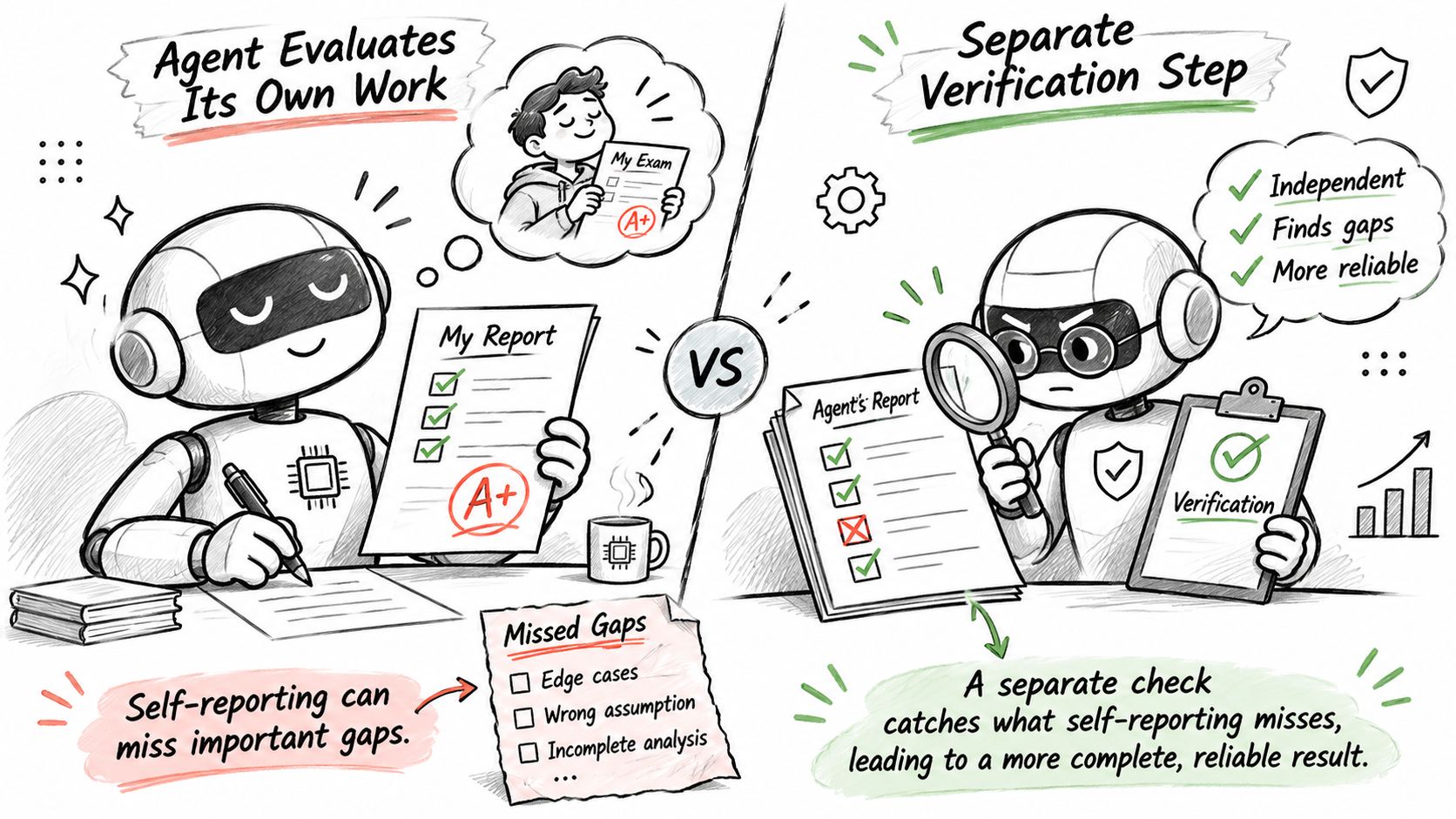
The sign-in failure above is a real one: on CheckMyApp's own app, the sign-in request answered 200 and created a session, but the page never left /login. The full case is on our Why page. That is the gap CheckMyApp fills: your agent says "done"; CheckMyApp uses your live app as a real user and tells your agent what broke, with screenshots and network logs. It runs separately from the agent's session, and the agent cannot mark a journey as passed.
Core principle: Let the coding agent report when it finishes writing code, and let something outside that agent confirm the deployed app works for users.
Your agent says “done”. We check your app.
After each deploy and every day, we walk the journeys you choose on your live app and tell your agent what passed and what failed, with screenshots.
claude mcp add --scope user --transport http checkmyapp https://checkmyapp.dev/mcpFree account: $3 of checks, no card · Cursor, Codex and the full install guide
Which Route to Use When
A good Claude Code browser workflow doesn't force one tool. Each handles a distinct job:
Claude in Chrome: fast interactive checks on signed-in pages while you build.
Playwright MCP: repeatable journeys, headless runs and multiple browser engines; turn them into tests in your repository.
Chrome DevTools MCP: diagnosing console exceptions, network errors and performance.
webapp-testing skill: a shared, ready workflow for testing local apps.
A check outside the agent, on the live app: confirming the journeys that matter still work after a deploy. CheckMyApp connects to Claude Code, Cursor and Codex through MCP; install it in one line.
Start small: write down the three journeys that would hurt most if they broke after a deploy, and create a dedicated test account for them.
This article was prepared with the help of AI. Found a mistake? Tell us.